 COCKPIT
Get Cockpit
Cockpit has two parts: the free app on your Windows PC, and the app on your phone or tablet. The Windows app is ready to download now; the Android app reaches testers through the closed test invite, and on an iPhone Cockpit opens in Safari.
Cockpit for Windows
For the PC where your AI assistant works: Windows 10 or 11, 64-bit.
Download for WindowsFree. Version 1.5.4
Cockpit for Android
For your phone or tablet, Android 10 or newer.
Through the closed test inviteCockpit on iPhone
Open this address in Safari, tap Share, then Add to Home Screen. Notifications need iOS 16.4 or newer.
app.cockpit.nakhlastudios.com
Want to be a tester? Write to us
The Windows file
- Version
- 1.5.4
- File
cockpit-pc-1.5.4-setup.exe- Size
- 31,223,039 bytes (31.2 MB)
- SHA-256
206124ae40a97662bbdcb71f353e03b001bf54a2d8138b4bb0f590a888e264e2
To check the file, run this in PowerShell in your Downloads folder; the SHA-256 must match the one above: Get-FileHash .\cockpit-pc-1.5.4-setup.exe
Installing the test version
This test version isn't signed yet, so Windows asks you to confirm before it installs.
- Your browser may say the file isn't commonly downloaded. Open Downloads, click the three dots next to the file, then Keep.
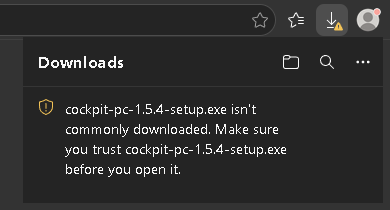
- A blue Windows box may appear. Click More info, then Run anyway.
- Windows asks about an “unknown publisher”. Click Yes, and the installer starts.
The public version will be signed, so these steps go away.
What you need
- A Windows 10 or 11 PC (64-bit) with your AI assistant
- An Android phone or tablet, signed in with a Google account
- An internet connection
After you install
- Open Cockpit on your PC.
- Open the app on your phone, sign in with Google and tap Link a PC.
- Type the one-time code your PC shows, then say yes on the PC. The code works once and expires after 10 minutes.
- Your PC shows up in the app. Nothing links without your yes.